My M1 MacBook Air with 256GB of storage is full, and people online are saying the M4 Mac mini’s storage is expandable via a third party solution. The extra storage is a nice upgrade, so I placed an order with expandmacmini.com for a ~$400 CAD 2TB SSD. Apple lists a similarly equipped Mac mini for $1999 CAD. Using the education store discount, I bought the base model for $750 CAD after tax which brings the total “savings” to $849 CAD. Not bad!
Some caveats:
- voided warranty
- requires tinkering
- requires Apple Silicon Mac to flash Mac mini
- took a month for the SSD to ship
The SSD arrived in a nondescript black bubble mailer. Included is the SSD itself, a pry tool, a jimmy, and a screwdriver with three interchangeable Torx bits. You need all three to do this replacement. I appreciated the inclusion of the tools as I didn’t own any beforehand.
If you’re planning to do this yourself, use iFixit’s guide. Jeff Geerling also has a good video and blog post to follow along with.
The trickiest part is just prying the plastic bottom cover off the base of the Mac. Other than that, it’s just screws and an unorthodox NVME SSD replacement. Once everything’s been put back together you plug that Mac mini into your other Apple Silicon computer and, holding the power button down, plug power in to the mini. A DFU window will pop up on the Apple Silicon computer and you can begin restoring the Mac mini.
This ended up taking me a couple attempts because my M1 MacBook had less than a GB of free space. The download for macOS 15.4 is ~17GB, and double that amount is needed to actually flash the Mac mini (since the Apple Silicon computer will download the 16GB as well as extract it). I ended up needing around 36GB free for the restoration to work.
I was spooked when the DFU process failed the first few times, especially because a. I didn’t power the Mac mini on with the original SSD and b. I dropped the third party SSD… but everything worked out so whatever.
After that you set up your Mac like usual. I ran a Blackmagic Disk Speed Test and wound up getting speeds slightly faster than Jeff Geerling… ;)
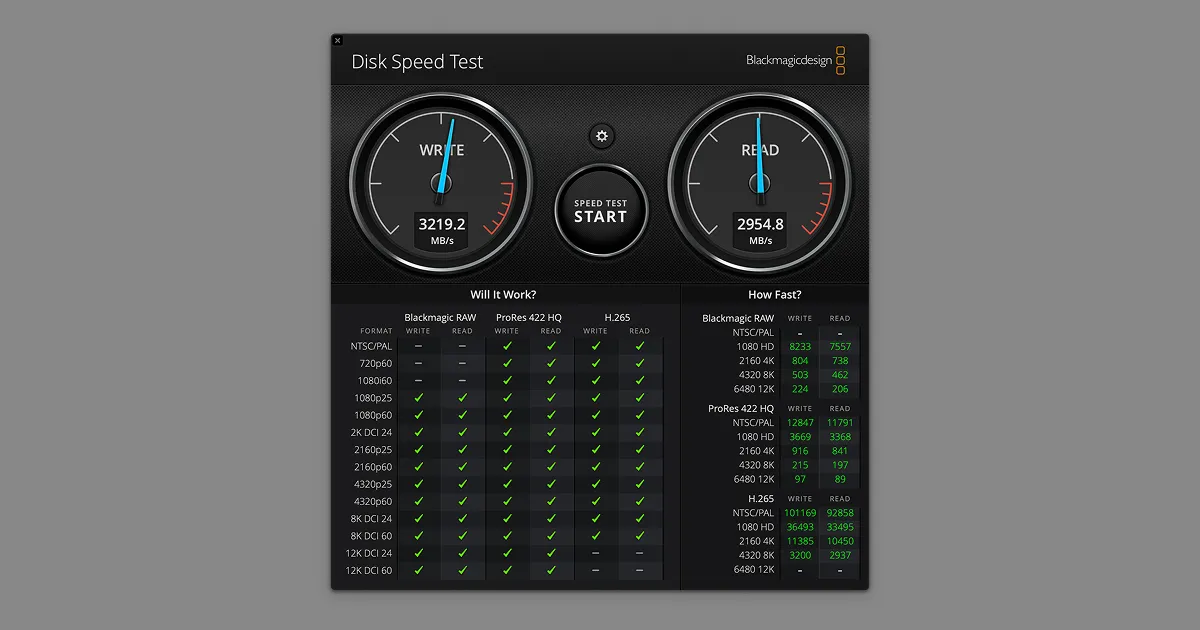
Overall I had a good experience buying from Expand Mac Mini. Shipping took a while, and the tracking number they eventually gave me was getting flagged by my ISP as suspicious, but the actual installation, product, and performance holds up.
That’s it for now. I’ll leave everything I did to setup the Mac below. After the following steps I’m left with 1.91 TB, down from 1.95 TB.
-
Sign into iCloud
-
System Settings
- Appearance
- Show scroll bar: Always
- Click in the scroll bar to: Jump to the next spot that’s clicked
- Control Center
- Spotlight: Don’t Show in Menu Bar
- Now Playing: Don’t Show in Menu Bar
- Desktop & Dock
- Remove everything from dock except: Finder, Settings, Safari
- Make Dock smaller
- Double-click a window’s title bar to: Do Nothing
- Minimize windows into application icon: On
- Automatically hide and show the Dock: On (we’ll make the animation faster later)
- Show indicators for open applications: Off
- Show suggested and recent apps in Dock: Off
- Prefer tabs when opening documents: Always
- Drag windows to menu bar to fill screen: Off
- When switching to an application, switch to a Space with open windows for the application: Off
- Group windows by application: On
- Drag windows to top of screen to enter Mission Control
- Hot Corners…
- Bottom Right: Mission Control
- Displays
- Night Shift…
- Schedule: Sunset to Sunrise
- Night Shift…
- Sound
- Play feedback when volume is changed: On
- Lock Screen
- Start Screen Saver when inactive: For 1 hour
- Turn display off when inactive: For 3 hours
- Require password after screen saver begins or display is turned off: After 4 hours
- Login window shows: Name and password
- Privacy & Security
- Apple Intelligence Report
- Report Duration: Off
- Apple Intelligence Report
- Internet Accounts
- Add Google account
- Keyboard
- Key repeat speed: Max speed
- Delay until repeat: Shortest delay
- Keyboard navigation: On
- Keyboard Shortcuts…
- Mission Control: ⌃ 3
- Mission Control
- Switch to Desktop 1: Enabled
- Windows
- Quarters
- Tile Top Left Quarter: ⌃ ⌥ u
- Tile Top Right Quarter: ⌃ ⌥ i
- Tile Bottom Left Quarter: ⌃ ⌥ j
- Tile Bottom Right Quarter: ⌃ ⌥ k
- Quarters
- Input Sources
- Select the previous input source: Disabled
- Select next source in input menu: Disabled
- Spotlight
- Show Spotlight search: Disabled
- App Shortcuts
- Finder
- Downloads: ⌃ + d
- Preview
- Duplicate: ⇧ ⌘ + d
- Adjust Size…: ⇧ ⌘ + r
- Save As…: ⇧ ⌘ + s
- Stickes
- Strikethrough: ⌘ + s
- Finder
- Input Sources
- Show Input menu in menu bar: Off
- Correct spelling automatically: Off
- Capitalize words automatically: Off
- Add period with double-space: Off
- Appearance
-
Finder
-
General
-
Show these items on the desktop:
- Hard disks: Enabled
- Connected servers: Enabled
-
New Finder windows show: Downloads
-
Open folders in tabs instead of new windows: Disabled
-
-
Sidebar
- Recents: Disabled
- Home directory: Enabled
- Shared: Disabled
- Recent tags: Disabled
-
Advanced
- Show all filename extensions: Enabled
- Show warning before changing an extension: Disabled
- Show warning before removing from iCloud Drive: Disabled
- Keep folders on top:
- In windows when sorting by name: Enabled
- When performing a search: Search the Current Folder
-
View
- Show Path Bar
- Show Status Bar
-
Show View Options
- Calculate all sizes: Enabled
- Show Library Folder: Enabled
- Use as Defaults
-
-
Install Homebrew
-
Install Raycast (Homebrew)
- Set hotkey to ⌘ + Space
- Settings
- General
- Menu Bar Icon: Disabled
- Window Mode: Compact
- General
- Extensions
- AI Extensions: Disabled
- Clipboard History: ⇧ ⌥ ⌘ + c
- Raycast
- Show Theme Studio: Disabled
- Upgrade to Pro: Disabled
- Walkthrough: Disabled
- Raycast Notes: Disabled
- Raycast Settings: Disabled
- Raycast Teams: Disabled
- Window Management: Disable all except…
- Maximize Height: ⌃ ⌥ h
- Maximize Width: ⌃ ⌥ w
- Reasonable Size: ⌃ ⌥ Space
- Advanced
- Pop to Root Search: After 5 seconds
- Install extensions
- Color Picker
- Unicode Symbols Search
- Set Audio Device
-
Install Rectangle (Homebrew)
-
Disable Drag to Tile
-
Keyboard Shortcuts
- Left Half: ⌃ ⌥ + ←
- Right Half: ⌃ ⌥ + →
- Top Half: ⌃ ⌥ + ↑
- Bottom Half: ⌃ ⌥ + ↓
- Maximize: ⌃ ⌥ + m
- Almost Maximize: ⌃ ⌥ + ⮐
- Make Smaller: ⌃ ⌥ + -
- Make Larger: ⌃ ⌥ + =
- Center: ⌃ ⌥ + c
- Move Up: ⌃ ⌥ + Page Up
- Move Down: ⌃ ⌥ + Page Down
-
Settings
- Launch on login: Enabled
- Hide menu bar icon: Enabled
- Gaps between windows: 8px (similar to Apple)
-
-
Install Alt Tab (Homebrew)
- Controls
- Trigger shortcut: ⌘ + Tab
- Show minimized windows: Hide
- Show hidden windows: Hide
- Additional controls…
- Select windows using vim keys: On
- Appearance
- Titles
- Hide apps with no open window: On
- Advanced
- Show titles: Application Name - Window Title
- Titles
- Controls
-
Install BetterTouchTool (Homebrew)
- Create initial Right ⌘ shortcuts
- Show/Hide Safari: Right ⌘ + b
- Show/Hide System Settings: Right ⌘ + ,
- Show/Hide Finder: Right ⌘ + f
- Show/Hide Notes: Right ⌘ + n
- Show/Hide Messages: Right ⌘ + m
- Create initial Right ⌘ shortcuts
-
Install Homerow (Homebrew)
- General
- Launch on login: On
- Clicking
- Browser labels: Fast
- Scrolling
- Scroll speed: Halfway
- General
-
Install SensibleSideButtons (Homebrew)
- Installation requires Rosetta. CAUTION: Hard/impossible to uninstall
-
Install MonitorControl (Homebrew)
-
Install SuperCharge
- General
- Launch at login: On
- Show menu bar icon: Off
- Tweaks
- When clicking an active app in the Dock: Minimize Windows
- Clicking a Dock folder reveals it in Finder instead of showing its contents: On
- Dim icons of hidden apps in the Dock: On
- Mission Control Window actions & shortcuts: On
- Move files with cut and paste: On
- Play sound effect when cutting: On
- Move files to trash with Delete instead of ⌘ Delete: On
- Invert selection: ⌥ + i
- Shortcuts
- Clear all notifications: ⌃ ⌘ + ⌫
- General
-
Install Ice (Homebrew)
- Launch at login: On
- Show on hover: On
-
Install JankyBorders (Homebrew)
-
Install Ghostty (Homebrew)
- Config
- theme = catppuccin-mocha
- minimum-contrast = 2.5
- background-opacity = 0.90
- background-blur-radius = 8
- window-height = 27
- window-width = 118
- cursor-style = bar
- cursor-style-blink = true
- adjust-cursor-thickness = 2
- shell-integration-features = no-cursor
- keybind = ⌘+backspace=text:\x15
- Create BTT shortcut: Right ⌘ + ⮐
- Setup zsh
- Install zinit
- Install powerlevel10k
- Install fzf (Homebrew)
- Install zoxide (Homebrew)
- Install yazi (Homebrew)
- set alias to
z
- set alias to
- Install git (Homebrew)
- Install lazygit (Homebrew)
- set alias to
lg
- set alias to
- Install eza (Homebrew)
- set alias to
ls
- set alias to
- Install bat (Homebrew)
- set alias to
cat
- set alias to
- Install yt-dlp (Homebrew)
- set alias to
yt - alias ytmp3 to
yt-dlp -x --audio-format mp3
- set alias to
- Install ffmpeg (Homebrew)
- Install imagemagick (Homebrew)
- Create ssh key + add to GitHub
- Install nvm + node
- Install npm-check-updates globally
- Install Neovim (Homebrew)
- Config
-
Install VSCode (Homebrew)
-
Install Zed (Homebrew)
-
Install Bitwarden (Homebrew)
-
Install Mullvad (Homebrew)
-
Install AdGuard
-
Install Firefox (Homebrew)
-
Install Google Chrome (Homebrew)
-
Install Obsidian (Homebrew)
-
Install ImageOptim (Homebrew)
-
Install IINA (Homebrew)
- System Settings -> Keyboard Shortcuts -> IINA -> File Loop: ⌘ + r
-
Install Upscayl (Homebrew)
-
Install ChatGPT (Homebrew)
-
Install Discord (Homebrew)
-
Install Spotify (Homebrew)
-
Install Figma (Homebrew)
-
Install Docker Desktop (Homebrew)
-
Install pgAdmin (Homebrew)
-
Install Logitech Gaming Hub (Homebrew)
-
Install DasiyDisk (App Store)
-
Install Xcode (App Store)
-
Install DaVinci Resolve (App Store)
-
Install Polycapture (App Store)
-
Install Acorn 8 (App Store)
-
Install Blackmagic Disk Speed Test (App Store)
-
Change dock animation speeds
defaults write com.apple.dock autohide-delay -float 0; killall Dock
-
Change screenshot save location
defaults write com.apple.screencapture location -string "${HOME}/Downloads”
-
Install Jetbrains Mono
-
Connect to PI-NAS
-
Disable screenshot previews
-
Change screenshot save location to /Downloads